Before you begin
- The student is on your Students list and isn't archived. See Add a student.
- To skip school holidays, pick your state in the last Settings card, Show AU school terms + public holidays.
- On a phone, tap More, then Settings under Account. On a computer, open the sidebar's Settings group, then select Settings.
- Going away this term? Add Time off first, in Set your availability. Time off added later doesn't move booked lessons.
Open your calendar
On a phone: tap Calendar in the bottom bar.
On a computer: select Calendar in the left sidebar.
Start a new lesson
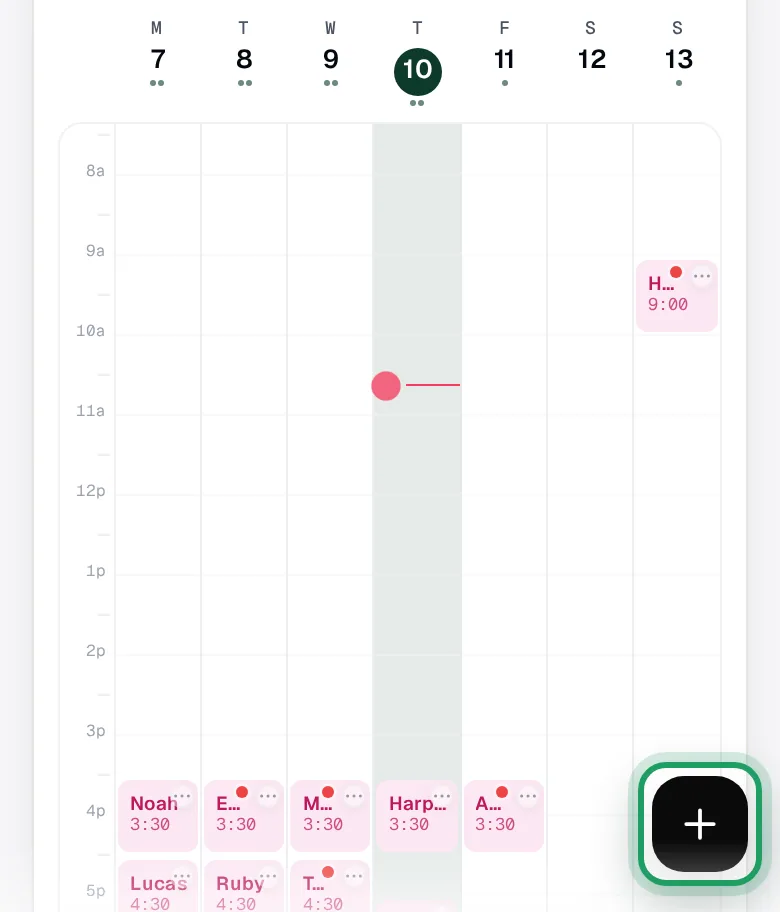
On a phone: tap the black + button at the bottom right, just above the bar.
On a computer: select New lesson at the top of the calendar.
A window opens, headed Book a lesson.
On a phone: going back, or dragging the grey handle down, closes it and clears the form.
Choose the student
Under Mode, leave 1:1 chosen.
Under Who, tap Select student... and choose the student.
Have a lesson type? Tap it under Template, the form's name for lesson types.
It fills in the subject, length, place and price.
No lesson type? Type the Subject yourself.
Set the first lesson
Under When, tap the date under Start time and pick the first lesson's date.
It starts on today, or on the day shown in Day view, so check it.
Then choose the time from its list of times.
End time moves with it and keeps the same length.
Already booked this student at that time? Start the series the week after, or nothing is booked.
Make it repeat
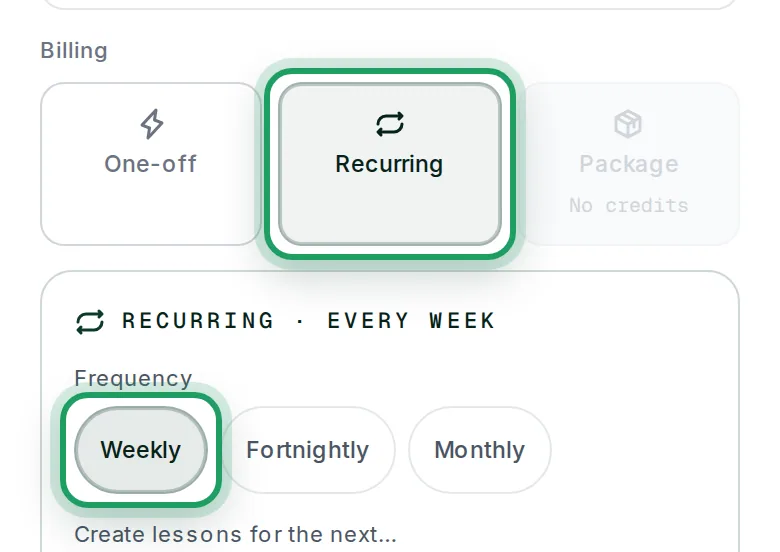
Under Billing, tap Recurring.
This only repeats the booking. It charges no one. You bill the lessons later, with an invoice.
A panel opens, headed Recurring · every week.
Under Frequency, tap one:
- Weekly: the same weekday and time each week. It's chosen to start with.
- Fortnightly: the same weekday and time every 2 weeks.
- Monthly: the same date each month, not the same weekday.
Choose how many
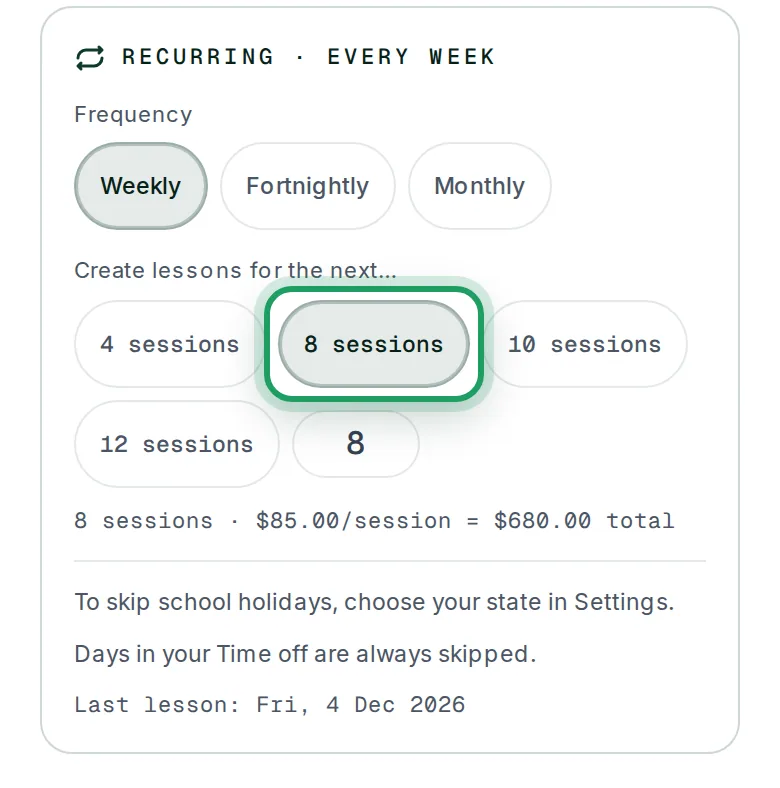
Under Create lessons for the next…, tap 4 sessions, 8 sessions, 10 sessions or 12 sessions.
Or type a number from 2 to 52 in the small box after them.
It starts at 4 sessions each time you open the form, so check it.
The number counts lessons, not weeks. With Fortnightly, 8 sessions is 8 lessons, two weeks apart.
The line below shows the total, such as 8 sessions · $85.00/session = $680.00 total.
Check the skipped dates
Wait a moment. Under the total, lessonu lists the dates it will skip.
With your state set, there's a ticked box, such as Skip NSW school holidays and public holidays.
Teaching through the holidays? Untick it.
The holiday tick comes back each time you start a new lesson.
See To skip school holidays, choose your state in Settings. instead? Then only your Time off is skipped.
To skip holidays too, set your state in Settings, then start a new lesson.
Skipped dates show under Skipped, so you still get 8 lessons: one per line, with the reason.
Check the Last lesson: date at the bottom.
Check the price
On a phone: scroll down past Where to the box under Rate.
On a computer: find the box under Rate in the right-hand column.
Rate ($) is the price of one lesson, not the whole term.
Priced per hour? The box says Rate ($/hr): type your hourly rate. The grey line below shows the lesson's price.
Change it if it's wrong.
No lesson type? A 30-minute lesson still starts at your full Default hourly rate (AUD).
If you haven't set one, it starts at $80.
A student with a special price gets that price instead, with a note under the box.
Check the total above. It changes to match.
Create the lessons
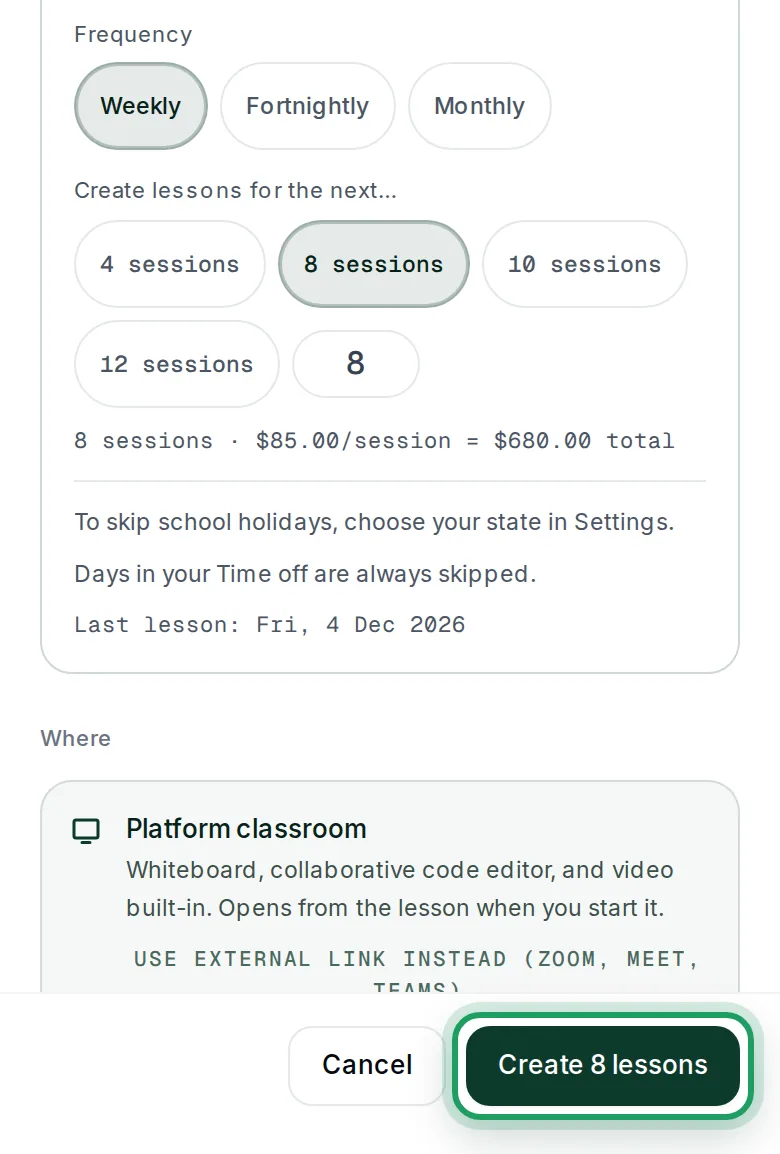
Tap Create 8 lessons in the bar at the bottom. The button shows your number.
The window closes, and the lessons appear on your calendar, each with a small loop icon.
If dates were skipped for Time off or holidays, an amber message lists them.
If a date clashed, you'll see a red message, such as Created 7 of 8 lessons.
Find the gap on your calendar, and book that week at another time as a One-off lesson.
Creating the lessons doesn't email, text or notify the family.
After the trial ends, tapping Create 8 lessons shows Your trial has ended — subscribe to make changes.
Watch it on a computer
Good to know
- A date skipped for Time off or holidays doesn't use up a lesson: the series carries on until it has your number. If the first date is skipped, the series starts on the next one that isn't.
- A date that clashes with a lesson you already have is left out and not made up, so you get fewer lessons. The skipped dates and the total don't show clashes.
- For next term, start a new series in that term's first week, so holidays are skipped. Add more sessions, in a lesson's panel, adds lessons straight after, but skips no Time off or holidays and doesn't make up clashes.
Questions
My student comes twice a week. One series or two?
Two series, one for each day.
Set up the first one, then start a new lesson for the second day.
My student already has a weekly lesson. How do I turn it into a series?
You can only set up repeats on a new lesson.
Start the series the week after that lesson.
Starting on that lesson's own date and time clashes with it, so nothing is booked.
You'll see This time slot conflicts with an existing lesson.
The window stays open. Change Start time, then tap Create again.
How do I change the price for a new term?
Not booked the new term yet? Set up a new series at the new price.
Already booked? Tap the first lesson that should have the new price.
On a computer: hover over the lesson and select View details →.
Tap Edit Series.
Change the price under Rate.
Tap Update lesson.
Every scheduled lesson from that one on gets the new price, except any already paid in advance.
Edit Series can also move the start time, by up to 24 hours either way.
Changing a lesson type's price doesn't change lessons already booked.
My student is stopping. How do I end the series early?
A series stops by itself after its last lesson.
To stop it sooner, cancel the lessons that are left.
Cancel or move a lesson shows how.
I can't find Recurring.
Recurring is only on a new lesson, not on one you're editing.
Start a new lesson in one of these ways:
- Tap +, or select New lesson, on your Calendar.
- Tap an empty time on your Calendar.
- Tap Schedule lesson on a student's page.
On a computer: dragging a lesson type onto the calendar, or pressing Q, opens a form without it.
A blue bar asks me to make it recurring. What does that do?
It can show when you save a one-off lesson with a lesson type.
It looks for 3 lessons of that type for that student, at one weekday and hour.
Make recurring opens a blank new lesson form, so choose the student and times again.
Start the series after the lessons already booked, or it clashes with them.
What’s nextSend an invoice