Before you begin
- Optional: to limit a time to certain lesson types, create your lesson types first.
- Trial ended? Nothing here saves until you subscribe. The page says Check your connection, but the ended trial is why.
Warning: Tapping Full-time, After school or Weekends only, even the highlighted one, replaces all your hours and clears every location and lesson-type limit on your times. Tapping Custom while a card is highlighted clears every hour. There's no undo. Once your hours have been saved for the first time, the change saves by itself.
Open Availability
On a phone: tap More in the bottom bar, then Availability, under Booking Page.
On a phone, you can also type “avail” in Search tools… at the top of More.
On a computer: open Settings in the sidebar, then select Availability.
Still on the setup guide? Open its Availability step and tap Set availability.
Pick a Quick setup card
The first time, the page suggests Monday to Friday, 9 AM to 5 PM, with Full-time highlighted.
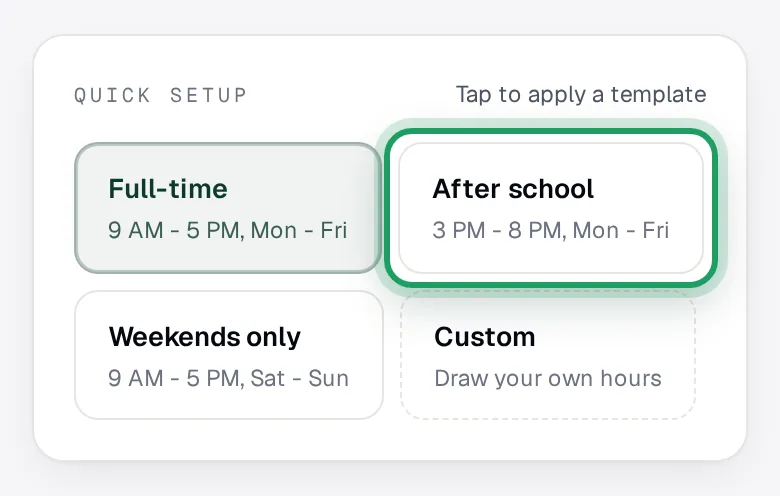
To use a ready-made week, tap a card under Quick setup:
- Full-time: 9 AM - 5 PM, Mon - Fri.
- After school: 3 PM - 8 PM, Mon - Fri.
- Weekends only: 9 AM - 5 PM, Sat - Sun.
Do this before you change anything else.
Tapping one later, even the highlighted one, replaces all your hours and clears every location and lesson-type limit.
To start from an empty week, tap Custom while another card is highlighted.
Each day now says No slots.
The first time, nothing is saved until you tap Save in step 5.
After that, tapping a card or Custom saves by itself, with no undo.
Add hours to a day
Stay on Weekly template and the Schedule tab, where the page opens.
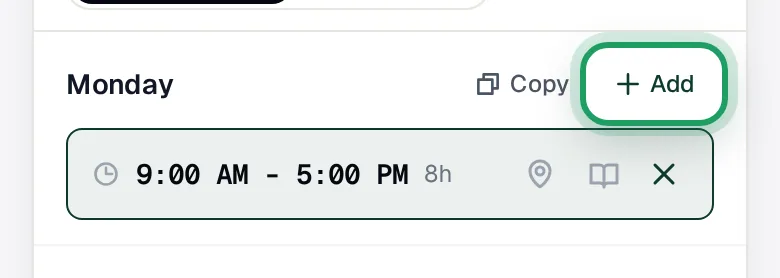
Tap Add on a day's row.
Pick a Start time.
Pick an End time.
Tap Add in the form.
Times run from 6:00 AM to 10:00 PM, in 30-minute steps.
Each time has three small icons with no words: a pin, a book and an X.
To remove a time, tap its X, on the right.
It goes at once, with no undo.
Copy a day to other days
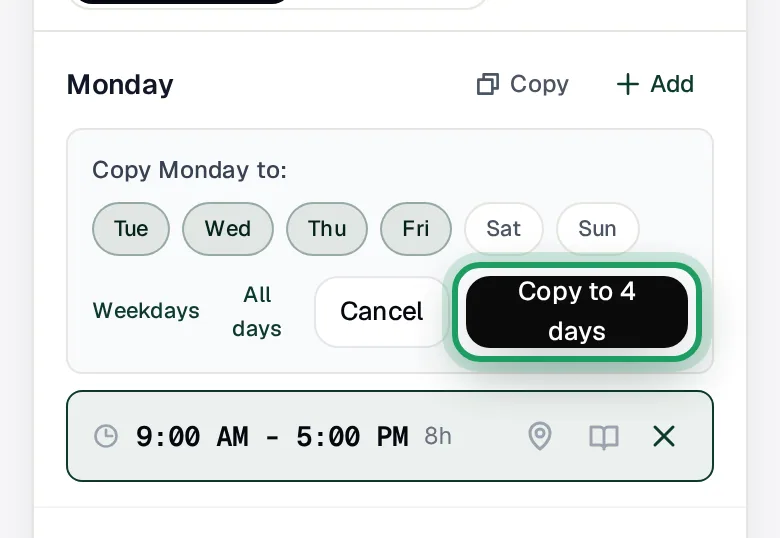
Tap Copy on the day you want to copy.
Tap the days to copy onto, or tap Weekdays or All days.
Tap the button that counts them, such as Copy to 4 days.
Those days get this day's hours, locations and lesson types, replacing what they had.
Copying an empty day clears the days you pick.
Save your hours
The first time only, tap Save, beside These are suggested hours. Nothing is saved until you press Save.
Until you do, your booking page says Availability not set up yet.
After that, each change saves by itself.
On a phone, the save status sits under the Availability heading.
Wait for All changes saved before you leave the page.
See Not saved? Tap Retry before you leave.
Add Time off
This works only after your first Save.
Time off blocks whole days, not part of a day.
On the Time off card, tap Add.
Pick a Start date.
Pick an End date if it's more than one day. Leave it blank for one day.
If you want, type a Reason, such as “School holidays”.
Tap the dark Time off button under the dates.
If nothing is booked on those days, it's added and saves by itself.
If lessons are booked, a pop-up asks first.
Choose what happens to booked lessons
In the pop-up, choose one:
- Cancel these lessons: already chosen. Package credits go back, and money paid in advance goes back as credit.
- Keep them: for example, if you'll teach these online. They stay booked, and nobody is told.
For a lesson on a sent invoice, the pop-up says Credit or refund the family yourself.
If you chose Cancel these lessons, leave Email the families ticked.
Everyone affected gets one email listing their cancelled lessons.
If you untick it, families without a lessonu login aren't told.
You can also type a Note to families (optional).
Changed your mind? Tap Back. Nothing is added, and your dates stay in the form.
Save the Time off
Tap the main button, such as Save Time off and cancel 3 lessons.
On a phone, it's above Back. It's red when lessons will be cancelled.
When the title says Time off saved, tap Done.
Chose Keep them? The pop-up just closes once it's saved.
If it says Your Time off wasn't saved, nothing was cancelled. Try again.
Allow only some lesson types (optional)
Do this last, once your hours are final.
This page calls lesson types “lesson templates”.
Tap the book, the middle icon, on the time you want to limit.
Don't tap the X beside it. It deletes the time at once.
Tick the lesson types allowed, under Bookable lesson templates for this slot:
Tap Done.
Only those lesson types can be booked at that time. With none ticked, every lesson type can.
Then check the small labels under each time are right.
Watch it on a computer
Good to know
- Families can book these hours only while Online booking is on, under Get booked on the Share page. See Share your booking page.
- A one-off 1:1 lesson you add yourself can go at any time, even on Time off. A new weekly or fortnightly series of 1:1 lessons skips your Time off days (Add more sessions doesn't).
- The pin icon sets a time's location, such as Online or In Person. Set locations last, once your hours are final. Your booking page doesn't show them to families.
Questions
Does changing my hours move or cancel lessons already booked?
No. It never moves or cancels a booked lesson.
It changes the times families can book from then on.
With the usual settings, a family's move to a free time inside your hours goes through by itself.
A day has hours. Why can't families book it?
Check you've tapped Save once. Until then, your booking page says Availability not set up yet.
Check Online booking is on, under Get booked on the Share page.
Check the time is at least as long as your Slot duration, and not inside your Min. notice.
Both are on the Booking rules card on the Availability page.
A Time off day offers no times either.
I teach 30-minute lessons. Why do families see so few times?
Your booking page cuts each time into blocks of your Slot duration, with the Buffer between them.
To begin with, they're 60 and 15 minutes.
So 3 PM to 8 PM offers only 3:00, 4:15, 5:30 and 6:45.
Both are on the Booking rules card on the Availability page.
How do I add a break, or change a time?
To change a time, tap its X, then add the new time.
For a break, remove the long time, then add two times with a gap between.
For example, 3:00 PM - 5:30 PM and 6:30 PM - 8:00 PM.
Times that touch or overlap join into one.
Why does a family see different times from mine?
Families see your times in their own time zone, with yours shown too when they differ.
How do I remove a Time off?
Tap the bin icon on it. It goes at once, with no confirm step.
Those days open for booking again, but lessons cancelled for it stay cancelled.
What’s nextShare your booking page