Before you begin
- Your weekly hours are saved. Until they are, your page shows no times: see Set your availability.
- Lesson types set the price. With none, page bookings are saved at $0: see Create a lesson type.
Open Share
On a phone: tap More, then Share under Booking Page.
On a computer: select Share in the sidebar, just under Messages.
Turn on online booking
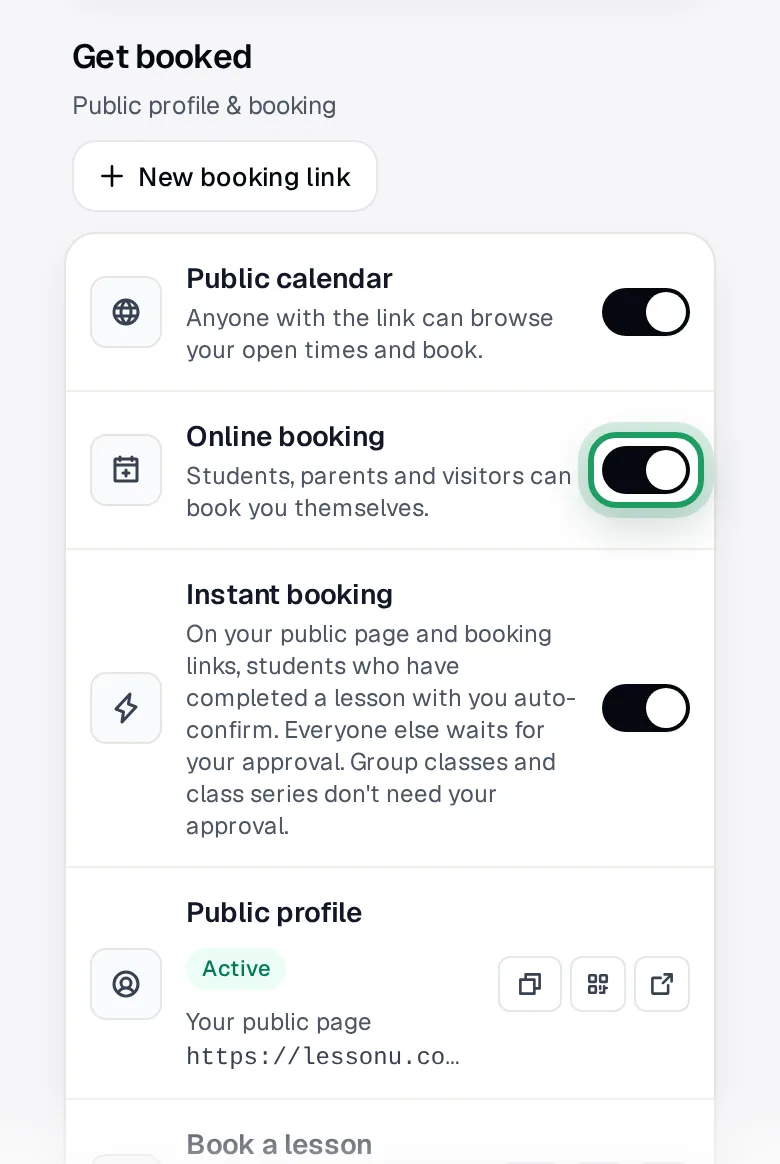
Under Get booked, check Public calendar is on, so anyone with your link sees your times.
Check Online booking is on, so families can book you themselves.
Tap the switch itself to change one. It saves at once.
Instant booking decides who waits for your approval:
- On, as it starts: families who've completed a lesson with you confirm at once. New families still wait.
- Off: you approve every one-to-one booking yourself.
Copy your booking link
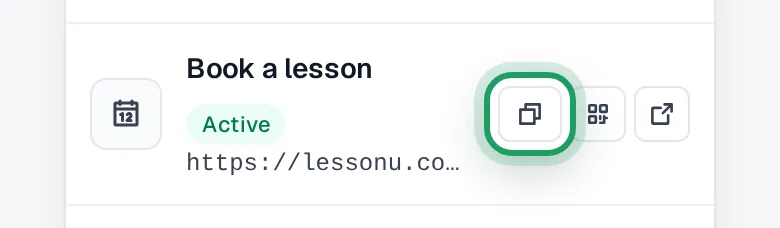
On the Book a lesson row, tap the copy button.
On a phone: it's a copy icon with no word. It turns into a green tick.
On a computer: it says Copy, then Copied.
No Book a lesson row? Turn on Public calendar.
To see your page as families do, tap the open-in-new-tab icon on that row.
For a QR code, tap the QR icon on the row, then Download PNG.
Approve new families
When a family books, you get a lessonu notice and an email.
A booking that waits for you says “Open your calendar to approve it.”
Open Calendar and tap Approvals, the button with the amber number.
On a phone: it's a calendar-with-clock icon with no word.
The inbox icon with a red number is Requests, for families booking inside lessonu.
Tap Approve or Deny on the booking.
Approve makes it a booked lesson and emails the family. Deny cancels it.
Good to know
- Families only see times inside your saved hours. The Booking rules card on the Availability page also changes which times they see.
- Booking from your page never takes a payment. The lesson is saved as unpaid, for you to bill later: see Send an invoice.
- A family who books becomes your student straight away, even before you approve. So a test booking makes a real student and sends real emails.
Questions
How do I let new families confirm straight away?
Open Settings, then Booking Rules. Under Booking approval, leave Auto-approve bookings on. It's the same switch as Instant booking.
Turn off Still approve new students, then tap Save booking rules. Nothing there saves until you do.
Can I share my page with chosen families only?
Yes. Turn Public calendar off, then tap New booking link.
Choose how long it works under Expires in, tap Create Link, and copy the new row's link.
Can I get a shorter link?
Yes. In the Your handle card at the top of Share, tap Claim and type a handle.
When it says Available, tap Save. Your link becomes lessonu.com/your-handle/book.
A parent says my page won't take their email.
If their email already has a lessonu login, the page refuses it. They book from their own lessonu account, or you book the lesson for them.
Their requests arrive under Requests in your Calendar.
My trial has ended. Can I change these switches?
Not until you choose a plan. The switches and New booking link don't save, and most say “subscribe to make changes”.