A lesson type is one of your services, such as a 30-minute piano lesson.
It has a name, a subject, a length and a price for each place you teach.
The menus say Lesson Types, and the page calls them Lesson templates.
Families pick one when they book on the booking page you share.
When you add a lesson, pick one under Template. lessonu fills in its subject, length, place and price.
Before you begin
- Check two things in Settings first. Going there halfway through loses what you've typed.
- On a phone: tap More, then Settings under Account. On a computer: open the sidebar's Settings group, then select Settings.
- In the Subjects, rates & booking card, check How you price lessons: Per lesson or Per hour.
- Set your Default hourly rate (AUD), then tap Save subjects & rates. lessonu asks about a price far above it.
Open Lesson templates
On a phone: tap More, then Lesson Types under Pricing.
On a phone, you can also type “lesson” in Search tools… at the top of More.
On a computer: open the sidebar's Settings group, then select Lesson Types.
Still doing the setup guide? Open its Services & pricing step, then tap Set up services.
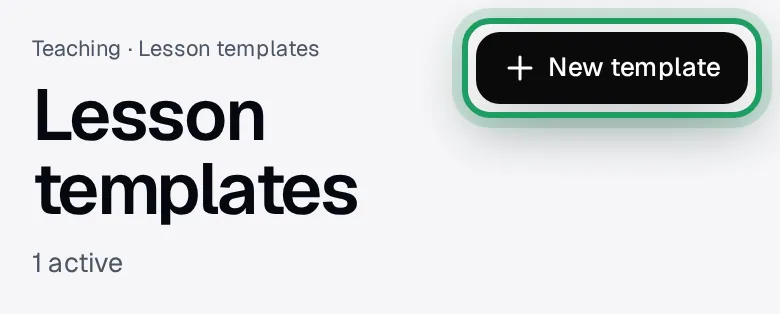
On the Lesson templates page, tap New template at the top right.
No lesson types yet? Create first type opens the same form.
The form opens, headed Create a lesson template.
Name it, pick a subject
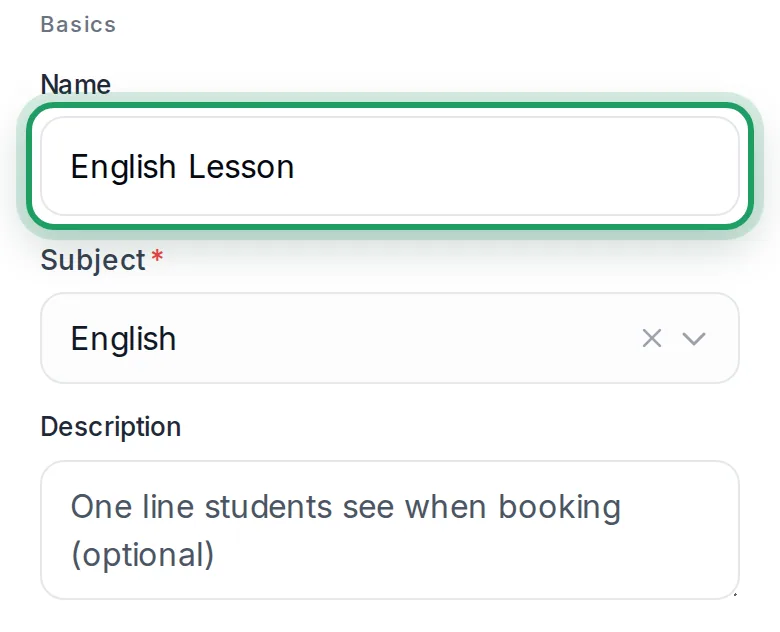
Under Basics, type a Name, such as Piano Lesson.
Tap Subject to see your subjects, then tap one, such as Piano.
Not in the list? Type it, such as Theory.
Then tap Add “Theory” in the list.
A typed subject only counts once it's added. Until then, Create template stays grey, even with a price.
If you like, type a one-line Description.
The booking page you share doesn't show it.
Set the length
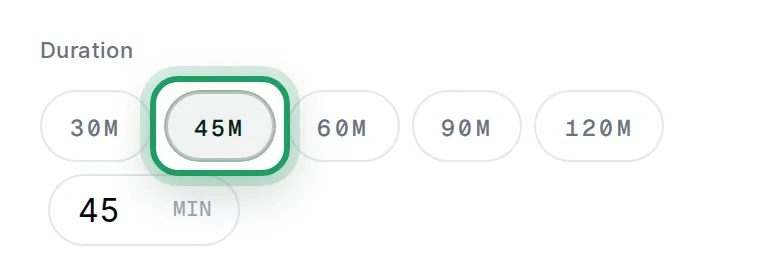
Under Duration, tap 30m, 45m, 60m, 90m or 120m.
Or type the minutes in the min box, in steps of 5, such as 40 or 75.
It starts at 60 minutes.
Each lesson type has one length.
Teach 30 and 45 minutes? Make a type for each, such as Piano 30 min and Piano 45 min.
Choose where you teach
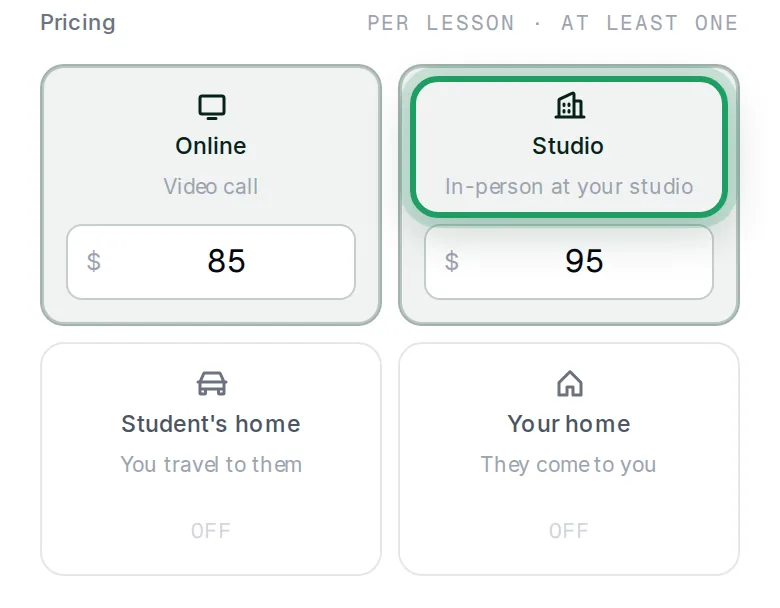
Online starts switched on, so leave it if you teach online.
Don't teach online? Tap Online to turn it off.
Tap each other place you teach to turn it on:
- Studio: in person at your studio.
- Student's home: you travel to them.
- Your home: they come to you.
A place that's off shows Off instead of a price box.
Type each place's price
Type a price in the $ box under each place that's on.
The amber line Tap at least one location and set a rate. then goes away.
Check the label beside Pricing:
- Per lesson · at least one: type what one lesson of this length costs.
- Per hour · at least one: type your hourly rate. $120 an hour saves $60 for 30 minutes.
Turning on a place after typing a price copies that price in. Change it if needed.
Pick a colour and save
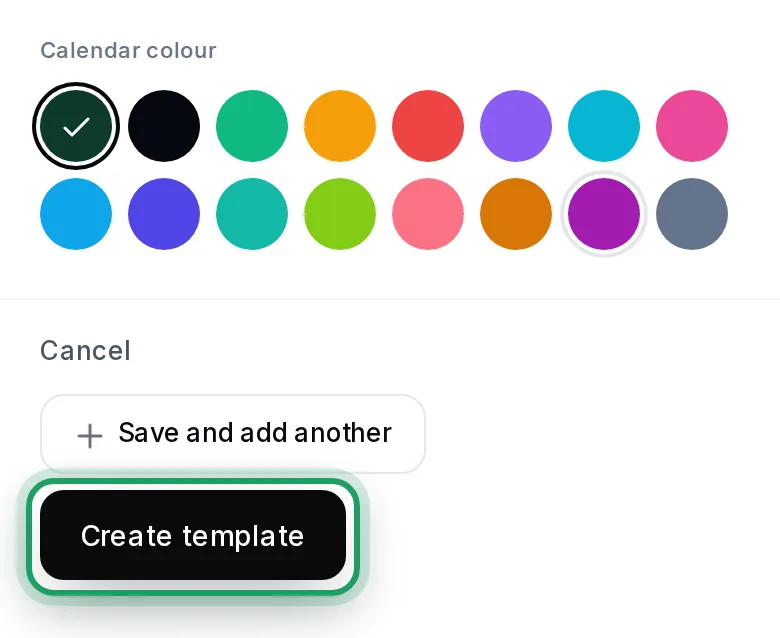
Under Calendar colour, tap a dot, or keep the first one.
Making more than one? Tap Save and add another instead of Create template.
Tap Create template.
Create template still grey? Check there's a Name, a Subject and a price under a place that's on.
Typed a new subject? Check you tapped its Add button in step 2.
If a price works out to over three times your usual rate, lessonu asks Is that right? Tap one:
- Change the price: nothing is saved, so you can fix it.
- Yes, save it: keep the price you typed.
The form closes, and your new lesson type shows on the page.
Priced per hour? Check the lesson price on its card.
After Save and add another, a green line says Piano Lesson created. Adding another?
Every box starts again, with Online back on. Turn it off again if you don't teach online.
Watch it on a computer
Good to know
- A free trial lesson can't be booked from your booking page. A $0 lesson type saves, but families can't book it.
- Saving, pausing or deleting a type removes subjects from Settings that no lesson type uses. Paused types don't count.
- Cancel, the X, tapping outside the form, going back or dragging it down on a phone all close it without saving. Nothing asks first.
Questions
Why is Create template grey?
It stays grey until there's a Name, a Subject and a price for a place that's on.
A typed subject counts only after you tap its Add button, such as Add “Theory”, or tap elsewhere.
No price yet? An amber line under Pricing says Tap at least one location and set a rate.
What do families see when they book?
On the booking page you share, families pick a Lesson Type by its name and length.
That box doesn't show a type's price or description.
The top of the page shows your price, such as $60 a lesson, or from $60 to $90 a lesson.
It's hidden if Show 1:1 lesson prices when families book in Settings says Length only.
Creating, editing or pausing a type sends families no email or message.
How do I change a price or length?
Tap the pencil on the lesson type's card, the first of three small icons.
Change the price or Duration, then tap Save changes.
Lessons already booked keep their old price.
That includes a booking from your booking page that's still waiting for your approval.
New sessions added to a weekly series keep the series' old price too.
To change a weekly student's price, see Set up weekly (or fortnightly) lessons.
How do I pause or stop offering a lesson type?
Tap the pause icon on its card: two bars, between the pencil and the bin.
The card leaves the list and your booking page.
To bring it back, tap Show 1 paused above the cards, then the play icon on its card.
Pause rather than delete: a delete can't be undone.
To delete it anyway, tap the bin, then Delete permanently.
Why isn't Subjects & rates ticked in the setup guide?
Your first lesson type ticks it, because its subject goes into your profile.
It ticks after you refresh the page.
Why did my subject's capitals change?
When you add a new subject while making a lesson type, lessonu capitalises the first letter of each word and lowercases the rest.
So NAPLAN becomes Naplan, and SAT prep becomes Sat Prep.
A subject you pick from your list keeps its capitals.
What’s nextSet your availability (the hours families can book)