Until it's done, the setup guide takes the place of your dashboard.
Do its steps in order: subjects, then a lesson type, then your hours. Doing the lesson type first can stop Subjects & rates showing Complete.
Before you begin
- A lessonu teacher account. New to lessonu? Start your free trial first.
Open the setup guide
After you confirm your email, lessonu opens on the setup guide.
At first, the top line reads Setup · 1 of 4 complete.
Below it, you'll see Welcome, and your first name.
The guide has four steps: Your profile, Subjects & rates, Services & pricing and Availability.
Don't tap Skip setup — take me to the dashboard, just above them. It doesn't ask first.
Your profile already shows Complete. You don't need a photo for it.
To open the guide again later, go to your dashboard.
On a phone: tap Home in the bar at the bottom.
On a computer: select Dashboard at the top of the sidebar.
Add your subjects
In Subjects & rates, which is already open, tap Add subjects.
Settings opens.
Scroll down past How students see you to the card Subjects, rates & booking.
If you like, tap a starting point under New here? Pick a starting point:
- Academic tutor
- Music teacher
- Language coach
- Group classes
Each fills in subjects and a suggested rate. Music teacher gives Piano, Guitar and Voice at $80.
To remove a subject you don't teach, tap its x.
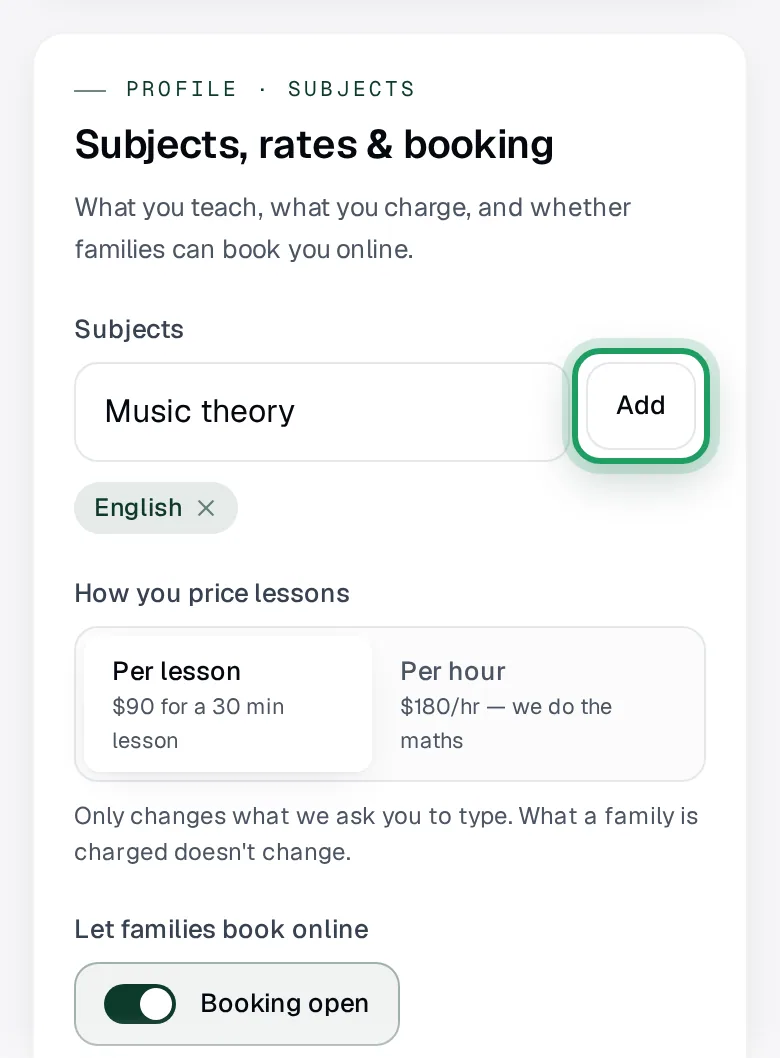
To add a subject yourself, type it in the box that says Type a subject and press Enter.
Tap Add after each one.
Check each subject now shows below the box, with an x beside it.
A subject left in the box isn't saved, even if the button later says Saved.
Save your subjects
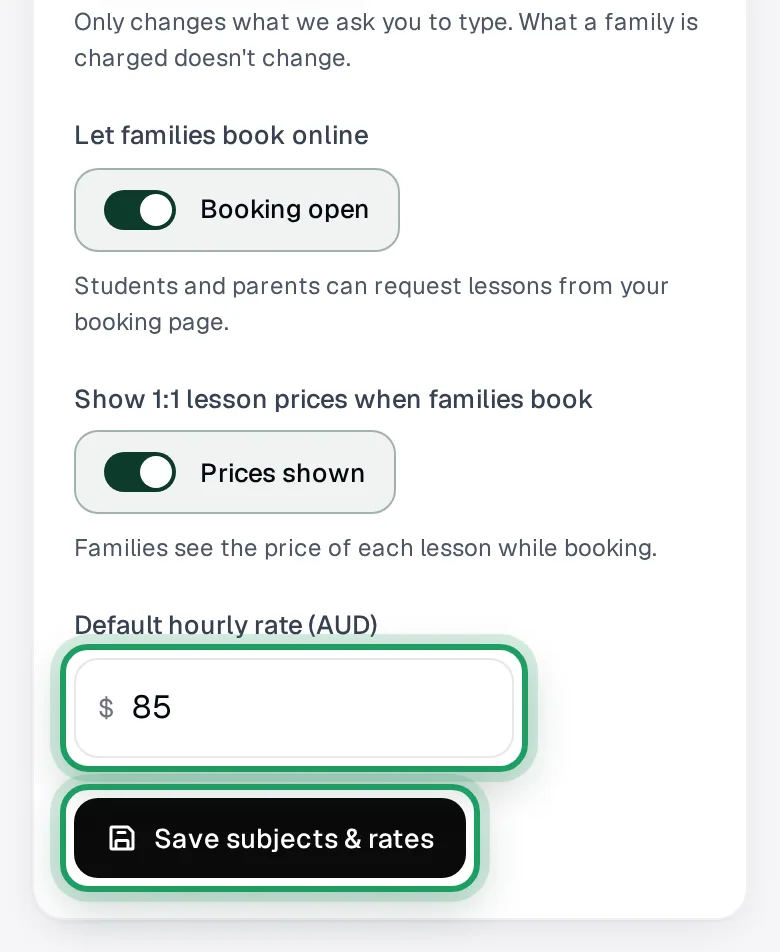
You can leave the three choices below your subjects as they are.
Default hourly rate (AUD) is optional. Lesson prices go in your lesson type.
Don't tap Save changes under How students see you. It doesn't save subjects.
Your subjects aren't saved yet. Leaving Settings now loses them, with no warning.
Tap Save subjects & rates at the bottom of the card, below the rate box.
It turns green and says Saved for a few seconds.
Go back to your dashboard.
On a phone: tap Home in the bar at the bottom.
On a computer: select Dashboard in the sidebar.
Subjects & rates now shows Complete.
Start one lesson type
In Services & pricing, which is now open, tap Set up services.
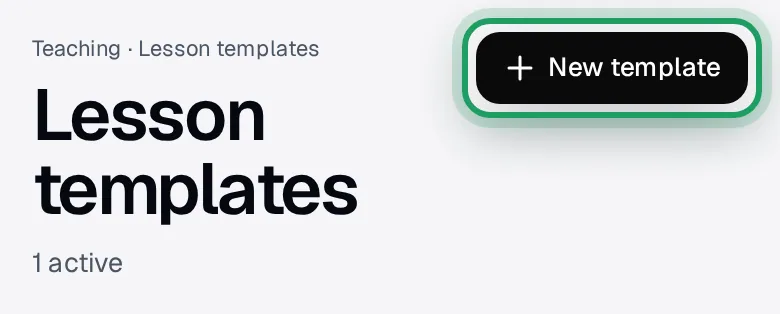
A page called Lesson templates opens. A template is a lesson type.
Tap New template at the top right. Create first type opens the same form.
On a phone: the form slides up.
Swiping it down, tapping above it or pressing Back closes it. What you typed is lost.
Type a Name, such as Piano Lesson.
Under Subject, pick one of your subjects.
Under Duration, keep 60m or tap another length.
Set its price and save
Under Pricing, Online is already switched on.
Teach online? Type your price in the Online box.
Don't teach online? Tap Online to switch it off.
Teach in person? Tap Studio, Student's home or Your home to switch it on.
Type its price. If the box already shows your Online price, change it only if needed.
Tap Create template.
It stays grey until it has a Name, a Subject and a price.
If it asks whether the price is right, tap Change the price or Yes, save it.
The form closes and your new lesson type appears on the page.
Your subjects are now just the ones your lesson types use.
Teach another subject? Tap New template again and make one for it.
Each box is explained in Create a lesson type.
Pick your weekly hours
Go back to your dashboard.
On a phone: tap Home in the bar at the bottom.
On a computer: select Dashboard in the sidebar.
In Availability, which is now open, tap Set availability.
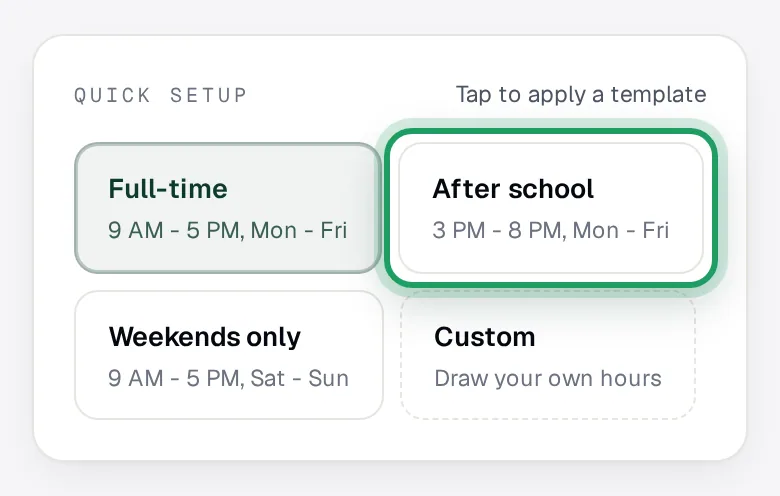
Under Quick setup, Full-time is already picked. It's Monday to Friday, 9 am to 5 pm.
For other hours, tap the closest one:
- After school: Monday to Friday, 3 pm to 8 pm.
- Weekends only: Saturday and Sunday, 9 am to 5 pm.
You can change single hours after you save.
Don't tap Custom. It clears every hour in the week.
Save your hours
The top of the page says These are suggested hours. Nothing is saved until you press Save.
Leaving the page before you save loses your hours.
On a phone: scroll back to the top and tap Save, under the Availability heading.
On a computer: select Save to the right of the Availability heading.
Wait until it says Saved.
After this first Save, changes save by themselves.
To change your hours later, see Set your availability.
Check you're done
Go back to your dashboard.
The setup guide has gone, and your normal dashboard opens.
You'll see Get to your first invoice and Three steps to a paid lesson.
Other cards, such as your trial banner, may sit above it.
It lists Add your first student, Schedule a lesson and Send your first invoice.
Good to know
- None of these steps emails families. Once your hours are saved, families can ask for lessons on your booking page. A new family's first booking waits for your approval.
- To find these pages later on a phone, tap More. Your subjects are in Settings, under Account. Lesson Types is under Pricing and Availability under Booking Page. On a computer, open the Settings group in the sidebar.
- The row headed Go further · once the basics are done isn't part of setup.
Questions
Can I do it a bit at a time?
Yes. Each step you save shows Complete and stays done.
The guide is there each time you open your dashboard, until all four are done.
Finish a page before you leave it. Unsaved subjects and hours are lost.
Why doesn't Subjects & rates say Complete?
A subject still typed in the box isn't saved.
In Settings, tap Add next to it.
Then tap Save subjects & rates and wait for Saved.
Save changes under How students see you doesn't save subjects.
Made the lesson type first? Add its subject in Settings, then tap Save subjects & rates.
Why doesn't Availability say Complete?
Your hours aren't saved yet. Picking a Quick setup option doesn't save them.
Tap Save at the top of the page.
Wait for Saved.
It says Not saved? Check your connection, then tap Retry.
Can I skip setup?
Yes. Tap Skip setup — take me to the dashboard, the small grey text above the four steps.
It doesn't ask you to confirm. The guide goes at once.
If it's back the next time you open your dashboard, tap it again.
From your next sign-in, it's gone for good.
Each step still works from its own page.
Do I need a Default hourly rate?
No, it's optional.
It isn't copied into your lesson types. Type each lesson type's price there.
Families see it only when no lesson type has a price.
A lesson you add without a lesson type starts at this price, or $80 if it's blank.
A lesson type over 3 times this rate an hour? lessonu asks you to check its price.
Can lessonu set it up for me?
Yes. In the guide's Rather we set it up for you? box, tap Set up my account.
Answer the questions, and the lessonu team sets up your account.
Sending your answers doesn't close the guide. It stays until all four steps show Complete.
What’s nextAdd your business details and ABN